
Find Your Exact Sales Tax in Seconds With This Free Calculator
A retailer finalizing a customer’s cart can instantly apply the correct local rate with a sales tax calculator, eliminating guesswork and manual errors. This tool swiftly computes the exact tax amount from a given subtotal and jurisdiction, turning a tedious task into a two-second action. By integrating it into checkout, you guarantee accurate charges every single time, protecting both your margins and customer trust. Just input the price and zip code, and the calculator delivers the final total with uncompromising precision.
How Does a Sales Tax Calculator Actually Work?
A sales tax calculator works by applying a single, precise mathematical operation to your entered amount: it multiplies the pre-tax subtotal by the tax rate expressed as a decimal. For example, an 8% rate converts to 0.08, and the calculator instantly computes the tax by multiplying your subtotal by 0.08, then adds that result to the original price to yield the final total. The core mechanism is a fixed-rate percentage multiplier, not a lookup table or a dynamic database query. You input a dollar value, the calculator applies the stored rate for your chosen jurisdiction, and it outputs both the tax amount and the gross total.
The key insight is that the calculator never estimates—it performs deterministic arithmetic, so if you know the rate, you can verify every result manually in seconds.
This process is identical whether you’re calculating on a single item or a bulk invoice, with no hidden variables beyond the rate itself.
The Simple Math Behind the Tool: Rate Multipliers Explained
A sales tax calculator relies on a single operation: multiplying the pre-tax price by a rate multiplier, expressed as 1 plus the decimal tax rate. For an 8% tax, the multiplier is 1.08; the tool simply computes price × 1.08 to yield the total. To isolate tax alone, it subtracts the original price from that result, or multiplies the price directly by 0.08. The multiplier flips for reverse calculations: dividing a gross total by 1.08 reveals the pre-tax amount, which is essential for invoice verification. This constant ratio makes the math deterministic, eliminating rounding guesswork across varying rates and jurisdictions.
- Rate multiplier = 1 + (tax rate ÷ 100), so 7.25% becomes 1.0725.
- Total = pre-tax price × multiplier; tax-only = price × (multiplier − 1).
- Reverse: pre-tax price = gross total ÷ multiplier, ensuring accurate deductions.
Why Location Matters: State, County, and City Tax Layers
A sales tax calculator only works if it understands that your location is a stack of separate taxing authorities. A single purchase can be hit by a state rate, a county surtax, and a city tax—each with its own base and caps. Entering just a ZIP code often misleads you because the true rate depends on the exact street address, where special districts or local exemptions begin. The calculator must layer these rates in the correct order, from state down to city, to avoid undercharging or overpaying. Location-based tax stacking is the difference between an accurate total and a costly surprise at the register.
A sales tax calculator fails without precise location data, since state, county, and city layers each alter the final rate independently.
What’s the Easiest Way to Get a Reliable Tax Rate for My Zip Code?

The easiest way to get a reliable tax rate for your zip code isn’t guessing from a neighbor’s receipt or a cached webpage—it’s using a sales tax calculator that pulls live, jurisdiction-specific data. When I helped a friend set up a small online store, we discovered that her zip code straddled two county lines, meaning a single rate would have undercharged customers on one side. The calculator solved this by combining state, county, and city rates instantly, then adding special district surcharges that were buried in municipal PDFs. No phone calls to revenue offices, no decoding 50-page tables. You simply enter the zip code, and the tool resolves the exact blended rate—even flagging if the address maps to multiple tax regions. For the most trustworthy result, choose a calculator that cites its sourcing date and offers a breakdown by layer, not just a single percentage.
- Check that the calculator lists the effective date of the rate (rates change quarterly).
- Confirm the tool separates state, county, city, and district components—not just a total.
- If your zip straddles boundaries, test neighboring codes to see if rates differ.
- Prefer calculators linked to authoritative tax databases (e.g., state DOR feeds) over static spreadsheets.
- Re-verify the rate quarterly, especially near year-end when new district taxes often take effect.

Key Features to Look for in a Sales Tax Tool
A reliable sales tax calculator should offer real-time rate updates across multiple jurisdictions, ensuring accuracy without manual research. Look for key features to look for in a sales tax tool, such as address validation that corrects typos and determines the precise taxing authority. The tool must support product-level taxability rules, distinguishing between taxable and exempt goods, while also handling shipping and handling charges correctly. A robust sales tax calculator should generate detailed reports for reconciliation and integrate seamlessly with your existing invoicing or e-commerce platform. Finally, verify it includes a built-in nexus indicator or threshold alerts to flag when you might trigger new filing obligations—this is a practical guardrail, not a regulatory deep dive.
Instant Rate Updates vs. Static Lists: Which Is Better?
When choosing a sales tax calculator, the debate between instant rate updates vs. static lists hinges on how current your calculations must be. Static lists are pre-loaded tables you manually refresh—they work for stable, single-state operations but leave you exposed when a city hikes its rate mid-quarter. Instant rate updates, by contrast, pull live jurisdiction data from the cloud each time you run a calculation, ensuring every invoice reflects the exact rate at that moment. For multi-state sellers, dropshippers, or anyone invoicing across borders, instant updates eliminate the risk of undercharging and triggering audits. Static lists only win if you operate in one low-change county and rarely re-enter data. The practical choice? Prioritize tools with automatic syncing, then verify their update frequency—daily beats weekly.
- Instant updates prevent costly under-collection during mid-year rate changes, while static lists require manual vigilance.
- Static lists reduce dependency on internet connectivity but demand scheduled re-uploads to stay accurate.
- Hybrid tools let you force a static fallback if the live feed drops, protecting checkout uptime.
Handling Tax-Inclusive vs. Tax-Exclusive Pricing Without Confusion

A reliable sales tax calculator must eliminate ambiguity between tax-inclusive and tax-exclusive pricing modes. Look for a tool that automatically detects the input type or lets you toggle it explicitly, then recalculates the base price, tax amount, and total in real time. Without this, a tax-inclusive amount can be mistakenly grossed up again, inflating liability. The ideal interface shows a clear breakdown: for tax-exclusive entries, it adds tax on top; for tax-inclusive entries, it extracts the tax from the gross figure. To verify accuracy, follow this sequence:
- Select the pricing mode before entering any amount.
- Confirm the displayed tax rate applies to the correct base (net vs. gross).
- Check the final total matches your intended transaction value.
A built-in mode indicator prevents silent miscalculations when switching between quotes or invoices.
Bulk Calculation: Adding Multiple Items in One Go
Bulk calculation streamlines sales tax by allowing merchants to enter multiple line items simultaneously, eliminating per-item manual entry. A robust tool processes each product against its applicable jurisdiction, while distinguishing taxable from non-taxable goods in a single batch. For accuracy, verify that the calculator supports CSV uploads or copy-paste arrays, then confirm it applies tax per line rather than averaging the total. Bulk calculation reduces error risk by maintaining line-level integrity across mixed-rate categories. However, the true efficiency gain emerges only when the tool recalculates instantly after any single-line edit. After adding items, scan for a summary column showing per-item tax, then export the breakdown for your records.
- Input all SKUs or descriptions with prices.
- Auto-assign tax codes or rates per line.
- Review and adjust flagged exceptions before finalizing.

How to Use a Tax Calculator for Your First Invoice
When you’re prepping that first invoice, a sales tax calculator is your best friend—just enter the pre-tax total and your local rate, and it’ll pop out the exact tax amount, so you don’t have to sweat the math. First, double-check the rate you type in, because it varies by city and state, and then apply that tax line to your invoice exactly as the calculator shows it. For example, if your service is $100 and the rate is 8%, the tool confirms you add $8—simple. Q: What if my client is in a different state? A: You usually charge based on your location, not theirs, unless you’re registered elsewhere, so just stick with your home rate. Finally, copy the calculated total straight onto the invoice to keep everything consistent and error-free.
Step-by-Step: Entering Your Amount Correctly
Begin by locating the “Amount” field and enter only the pre-tax total, not the final price your customer pays. For a first invoice, double-check that you have excluded shipping or discounts unless your calculator explicitly includes them. Next, choose whether the figure is taxable or non-taxable—most tools provide a toggle, so select “taxable” for goods or services subject to your local rate. After typing the number, pause to verify decimals: use “100.00” rather than “100” if the calculator expects two places. Then, click “Calculate” and review the breakdown to confirm the tax matches your expected rate. If the output seems off, re-enter the amount, ensuring no comma separators or currency symbols were pasted in. This precision prevents invoice errors before you send it.
When to Apply the Rate to Shipping Costs
Apply your sales tax rate to shipping costs only when the items being shipped are taxable in your destination state. Since taxability rules vary, your sales tax calculator should include shipping in the taxable base if the product itself is taxed. Enter the shipping charge into the calculator’s “taxable amount” field, but only after confirming your state treats freight as part of the sale price. To stay accurate:
- Check whether your state taxes shipping for your product category.
- If taxable, add the shipping fee to the product subtotal before calculating.
- If exempt, keep shipping separate and exclude it from the taxable base.
This single decision prevents undercharging on invoices and avoids reconciliation headaches later.
Rounding Rules: What to Do With Half-Cents and Odd Totals
When your sales tax calculator produces a half-cent or an odd total, always round to the nearest whole cent rather than truncating the digits. For amounts exactly at the .005 threshold, round up, which ensures you never under-remit to the tax authority. Consistent rounding rules on half-cents prevent confusing discrepancies between your invoice line items and the final total. If your calculator displays more than two decimals, apply the rule manually to each tax component before summing, not after, because rounding the aggregate alone can skew the result. Adopt this method for every invoice, and your records will stay auditable and professional.
Common Mistakes People Make When Using a Sales Tax Tool
When using a sales tax calculator, a common mistake is entering a gross amount instead of a net amount, which inflates the tax calculated and misleads budgeting. Another frequent error is failing to adjust the rate for the specific jurisdiction, as calculators default to a single rate that may not match your local combined tax. Users also often overlook whether the tool includes shipping charges in the taxable base, leading to under- or over-payment. Even a seemingly minor mismatch in decimal precision can cascade into significant discrepancies across multiple transactions. To avoid these pitfalls, always verify the rate against the destination address and confirm whether the calculator’s output is pre- or post-tax. Double-check the input type before relying on the result. Review the tool’s settings for special exemptions or caps.
Using an Outdated Rate for a Different City
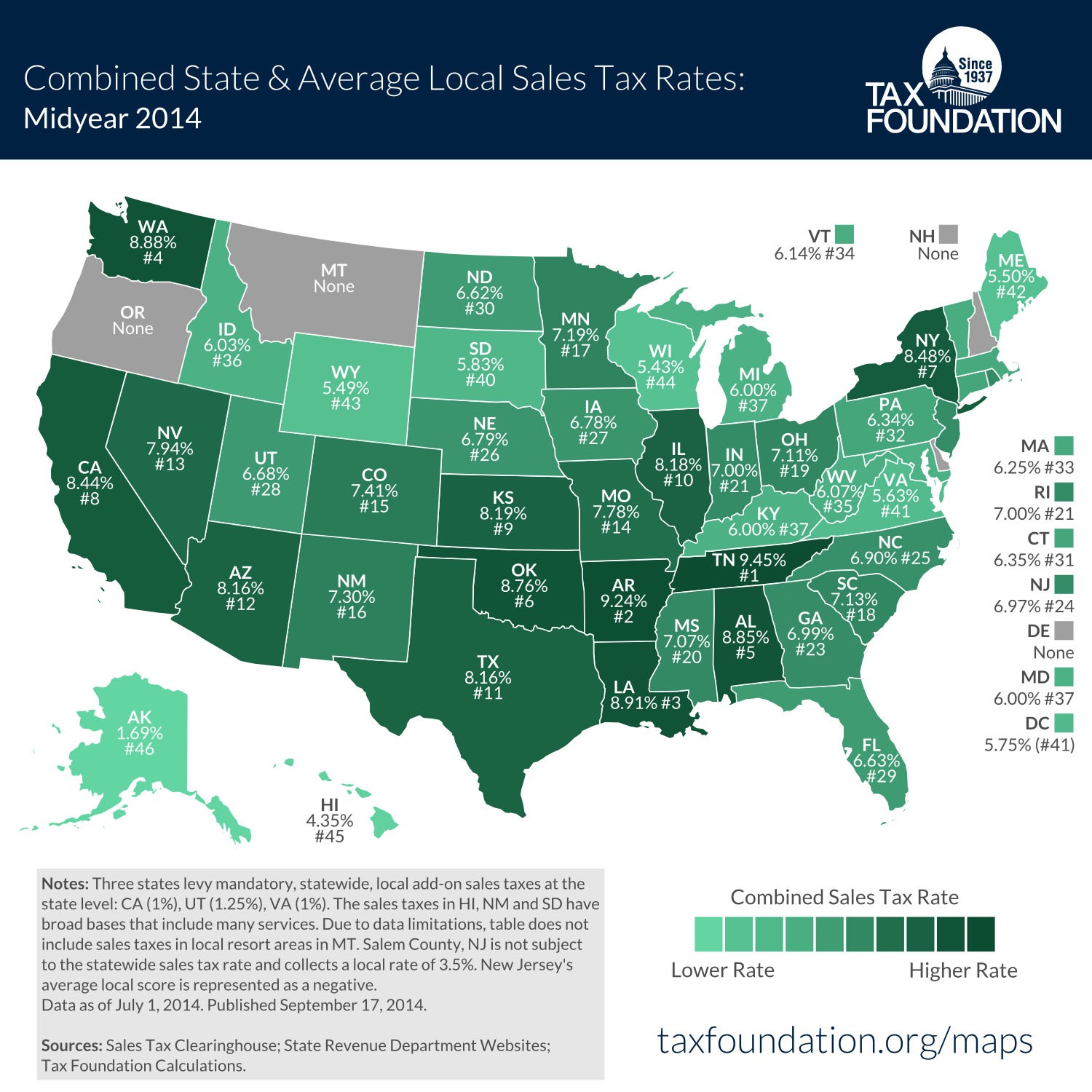
When a sales tax calculator defaults to a stored rate, users often overlook that the rate belongs to a previous location or tax period. Selecting a city manually does not guarantee the tool recalculates the underlying jurisdiction data—it may simply apply the outdated percentage from the last searched ZIP code. This creates a false sense of accuracy, especially when neighboring municipalities have different combined rates. To avoid this, always refresh the calculator’s rate mapping before each transaction and verify that the displayed city code matches the current delivery address. Using an outdated rate for a different city silently inflates or undercuts collected taxes, leading to reconciliation errors that surface only after invoices are sent.
Always confirm the rate is both current and tied to the exact city of sale—never trust a pre-filled value from a prior lookup.
Forgetting to Add Local District Surtaxes
When you rely on a sales tax calculator, **forgetting to add local district surtaxes** silently erodes your pricing accuracy. Many calculators default to state-level rates, leaving you blind to the extra levies imposed by transit authorities, tourism boards, or county jurisdictions. If you skip manually verifying these surtaxes, every invoice undercharges, and your sales tax calculator profit margin shrinks with each transaction. Worse, you only notice the shortfall when reconciling quarterly filings, forcing painful adjustments. To stay sharp, always cross-check your tool’s output against a current district surtax list before finalizing rates. That single step keeps your quotes honest, your margins intact, and your compliance headaches minimal.
Mixing Up Pre-Tax and Post-Tax Discounts
When using a sales tax calculator, mixing up pre-tax and post-tax discounts is a frequent source of calculation errors. A pre-tax discount (e.g., a coupon applied before tax) reduces the taxable base, lowering the final tax amount. A post-tax discount (e.g., a store-wide rebate applied after checkout) does not affect the tax already calculated, meaning you pay tax on the original price. If the tool lacks a clear toggle for this, enter the discount amount into the correct field—otherwise, you may overpay tax or under-report liability. Always verify which type your scenario uses, as taxable base changes accordingly.
What’s the Difference Between a Sales Tax Calculator and a Tax Lookup Table?
A sales tax calculator and a tax lookup table might seem like rivals, but they actually serve different points in your purchasing journey. A lookup table is the raw, static data—a list of city and state rates you’d consult like a map. It tells you the *rate*, but leaves the math to you. A sales tax calculator, on the other hand, is the engine that turns that map into a drive. You enter a dollar amount, and it instantly applies the correct, often complex, rate combination (state + county + city) to give you the final total. The real difference is in the workflow: a lookup table requires manual interpretation, while a calculator handles the burden of calculation and often pulls updated rates automatically. For quick, repeated calculations, a sales tax calculator is far more practical; a table is only useful for a single, simple rate check.
| Aspect | Tax Lookup Table | Sales Tax Calculator |
|---|---|---|
| Primary Function | Provides the applicable rate | Calculates final price including tax |
| User Effort | Manual lookup and manual math | Enter amount; tool does the rest |
| Rate Updates | Static; often must be re-downloaded | Often auto-updated within the tool |
| Use Case | Checking a single rate for a specific zip | Multiple, quick transactions or invoicing |
| Error Potential | High (human math, wrong rate selection) | Low (automated calculation) |
Can This Tool Handle Returns, Refunds, and Exempt Customers?
Returns, refunds, and exempt customers can get messy fast, but this sales tax calculator keeps things practical. It doesn’t just compute the initial sale—it lets you reverse a transaction by entering the original invoice number and the refund amount, then recalculates the exact tax due back to you or the customer. For exempt buyers (like resellers or nonprofits), you can save their certificate details directly in the customer profile, so every future invoice automatically skips tax without manual tweaking. You won’t need to re-enter exemption data for repeat customers—it’s stored securely and applied automatically. The tool also flags partial refunds, showing you the adjusted tax liability on the remaining amount, which prevents over-crediting. For mixed carts (taxable and exempt items), it splits the line items and only applies tax where required.
- Process a refund by entering the original order ID; the calculator pulls the original tax rate and shows the exact credit.
- Upload or store exemption certificates per customer; the tool auto-applies the exemption to all future orders for that profile.
- For partial returns, adjust the quantity or dollar amount—the tax recalculation updates instantly for the remaining paid balance.
- Run a quick “exempt-only” preview before checkout to confirm no tax appears on qualifying items.
How to Verify Your Results When You’re Selling Across State Lines
When you sell across state lines, a sales tax calculator’s output is only as reliable as your verification process. Start by cross-checking the calculated rate against the destination state’s official taxing authority website, since rates vary by county and city. Confirm the calculator applies origin-based rules for your home state and destination-based rules for others—mistakes here are the most common source of errors. Next, run a test transaction for a product with a known taxable status, then compare the calculator’s total tax to a manual computation using that state’s rate sheet. Always re-verify after any address change, as ZIP codes often span multiple tax jurisdictions. Finally, ensure the calculator factors in taxability differences, like clothing exemptions or digital goods rules, by consulting state-specific guidance.
Verify your sales tax calculator results by maintaining a checklist that includes your seller permit number, the exact ship-to address, and the product’s exemption code. A robust verification workflow saves you from audit penalties.
| Verification Step | What to Check | Action If Mismatch |
|---|---|---|
| Rate lookup | State, county, city combined rate | Manually enter new rate |
| Nexus rules | Economic threshold met? | Switch to origin-based calc |
| Product taxability | Exempt or reduced-rate item? | Apply correct exemption code |
| Shipping charges | Taxable in destination state? | Adjust taxable base |
Use these checks monthly to maintain confidence in your cross-border tax calculations.
A Quick Guide to Picking a Free vs. Paid Calculator
Choosing between a free and paid sales tax calculator hinges on your transaction volume and complexity. A free version handles single, straightforward state rates instantly—perfect for occasional side sellers. However, a paid sales tax calculator unlocks dynamic features like product-tax category mapping and multi-state nexus tracking, which prevent costly manual errors. Free tools often rely on static rate tables that miss local district surcharges, while paid tiers update in real time. If you invoice across borders or manage recurring sales, the subscription pays for itself in audit protection. For a hobbyist, start free; for a growing business, upgrade once you hit 50+ monthly transactions—that’s the practical tipping point.
What Free Versions Often Sneak Into the Fine Print
Free sales tax calculators often bury usage limits hidden in the fine print, so you won’t discover the cap until you hit it mid-checkout. Many restrict you to a handful of daily lookups or a single state, silently switching to a paid tier after your tenth calculation. Others sneak in outdated tax tables, meaning your “free” result might miss a recent rate change—leaving you undercharging customers. Some also watermark results, forcing manual entry into invoices, while a few claim “unlimited” but throttle speed during peak hours, turning a quick quote into a waiting game.
- Daily or monthly calculation caps that trigger paywalls without warning
- Only one jurisdiction or ZIP code included—extra states require upgrading
- Delayed table updates so results reflect last quarter’s rates
- No export or print function to push you toward a premium plan
When Paying a Small Fee Saves You Hours of Manual Work
When your sales tax calculator only handles a single rate, a small one-time fee unlocks batch processing that turns a three-hour spreadsheet slog into a three-minute upload. Paying a small fee saves you hours of manual work the moment you handle multiple jurisdictions, resale certificates, or product exemptions—each requiring separate calculations you’d otherwise key in line by line. The paid tier also auto-logs every entry, eliminating copy-paste errors and double-checking. *A fee makes sense only if your monthly volume exceeds roughly ten transactions, beyond which your hourly rate dwarfs the cost.* For occasional use, free remains fine; for recurring multi-state invoices, the paid version pays for itself by lunchtime.
Frequently Asked Questions About Using This Handy Tax Helper
When someone first opens this handy tax helper, the FAQ usually starts with the obvious: “Do I enter the price before or after tax?” The tool’s answer is always the same—type in the pre-tax amount, and it instantly calculates the added sales tax. A common follow-up is about changing your local rate, and users learn they can simply adjust the percentage slider mid-purchase. Another frequent question involves reverse calculations: if you only know the final total, the helper reveals the original base price and the tax portion hidden inside. Many also wonder if the results reset after each entry, and they’re relieved to see a clear “clear all” button. The sales tax calculator FAQ consistently saves people from guessing, turning a confusing receipt into a clear story of exactly what they paid and why.
Is It Accurate Enough for My Quarterly Tax Filing?
For quarterly tax filing, a sales tax calculator is accurate enough if it applies your exact jurisdictional rates and rules for the filing period. The tool must handle rate changes, product taxability, and origin-versus-destination sourcing to match your state’s requirements. However, it cannot replace your own verification of line-item exemptions or nexus-based obligations. Most calculators provide a solid estimate for remittance, but you should cross-check totals against your POS reports and state portal figures. Quarterly filing accuracy depends on current rate data, so ensure the calculator updates automatically and you audit every transaction for edge cases like shipping charges or discounts before submitting.
Does It Work for Digital Products and Services, or Only Physical Goods?
Yes, the calculator handles both physical goods and digital products, but you must verify the taxability rules for your specific state. Unlike tangible items, digital products like software, e-books, and streaming services are taxed differently—some states treat them as taxable tangible personal property, while others exempt them. The calculator lets you select a product category, so you can apply the correct rate for digital downloads or SaaS. However, it cannot automatically determine if your product qualifies for an exemption; you must input the correct nexus and product type. Digital product taxability varies by state, so the tool’s accuracy depends on your manual selections.
- Choose “digital goods” or “physical goods” in the product type field to apply the right rate.
- Check your state’s exemption list, as the calculator does not enforce tax-free digital categories.
- For services delivered online, confirm whether your state classifies them as taxable services or intangible items.
- Update your product classifications if you sell both physical and digital versions of the same item.
Can I Use One Calculator for My Online Store and My Brick-and-Mortar Shop?
Yes, one sales tax calculator can manage both your online store and brick-and-mortar shop, provided you configure it for each sales channel. The multi-location tax logic within a single tool lets you assign different nexus profiles to your physical register and e-commerce checkout. For in-store sales, the calculator applies the tax rate based on your shop’s address, while online orders use the buyer’s ship-to ZIP code—both within the same dashboard. This consolidates reporting and reduces error risk.
- Set separate tax profiles for each channel to avoid rate mismatches.
- Verify the calculator supports real-time rate lookup for both ZIP and store-level jurisdictions.
- Use one export format for combined filings, but keep per-channel logs for audits.